About the Island / Locals Know Blog / Know Before You Go
Waterfall Season App Fix

If you are experiencing problems scanning Waterfall Season QR codes, don’t worry, there’s an easy fix! In fact, the waterfalls that you’ve visited and scanned may already be counted. The app is designed to cache your scan when you’re in an area of no cell signal. When you phone is back in cell signal range, the scan should then be applied to the waterfall you’ve visited.
If you’ve visited a Waterfall Season waterfall and want to make sure it’s counted, please send an email to us at [email protected] with the names and dates of the waterfalls you’ve visited and we’ll make sure they are applied to your account.
How to Fix the "Location Unknown" Error on iPhone (iOS)
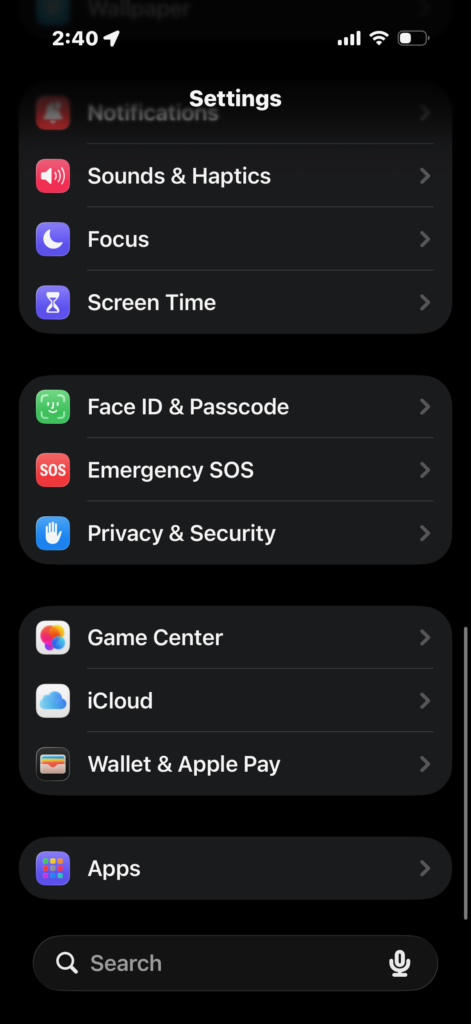
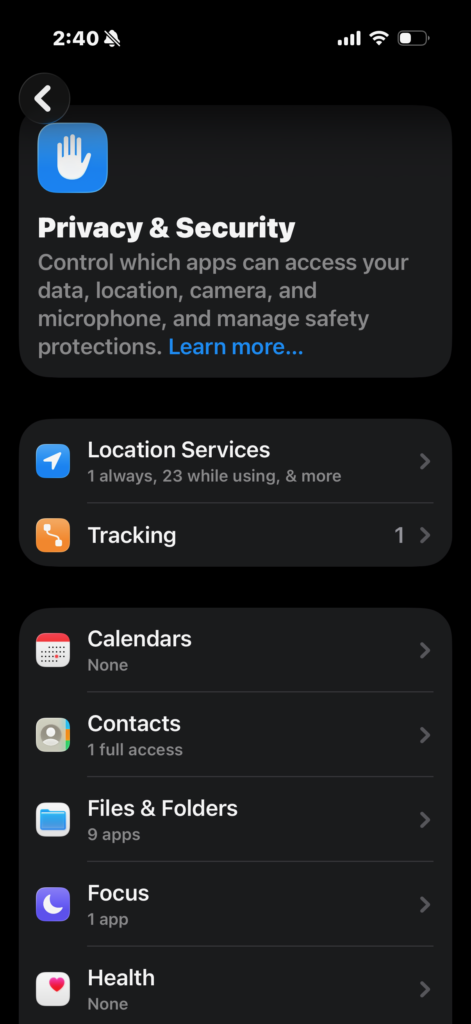
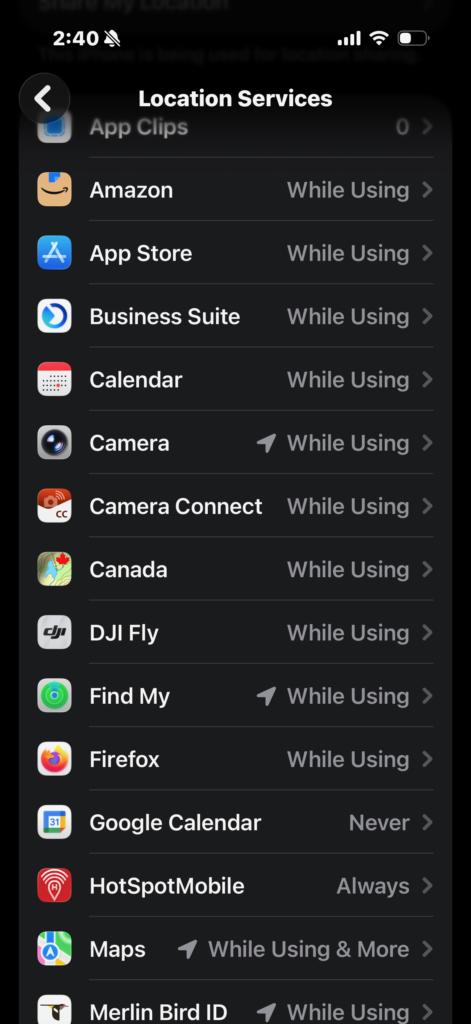
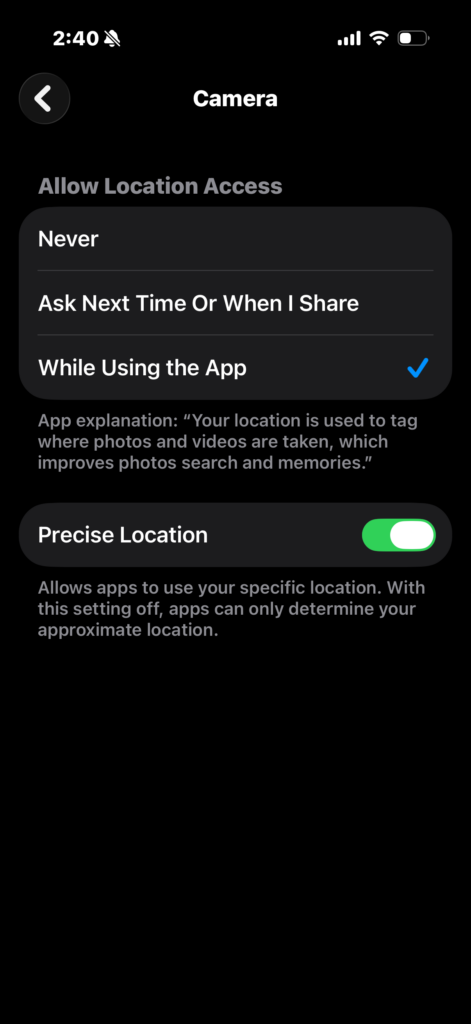
If you are using an iPhone, the app needs your camera to attach exact GPS coordinates to your photo. Here is how to make sure that permission is turned on:
- Open your Settings app and scroll down to tap on Privacy & Security.
- At the top of the next screen, tap on Location Services. (Make sure the main toggle at the very top is turned on!)
- Scroll down through your list of apps until you find the Camera app, and tap on it.
- Under the "Allow Location Access" menu, select While Using the App.
- The Crucial Step: Ensure the Precise Location toggle at the bottom is turned ON (the switch should be green). Without this, your phone only records your general area, which isn't accurate enough for the app's waterfall check-ins.
How to Fix the "Location Unknown" Error on Android
Android menus can vary slightly depending on if you are using a Pixel, Samsung, or another brand, but the general path remains the same. Here is how to fix the permission:
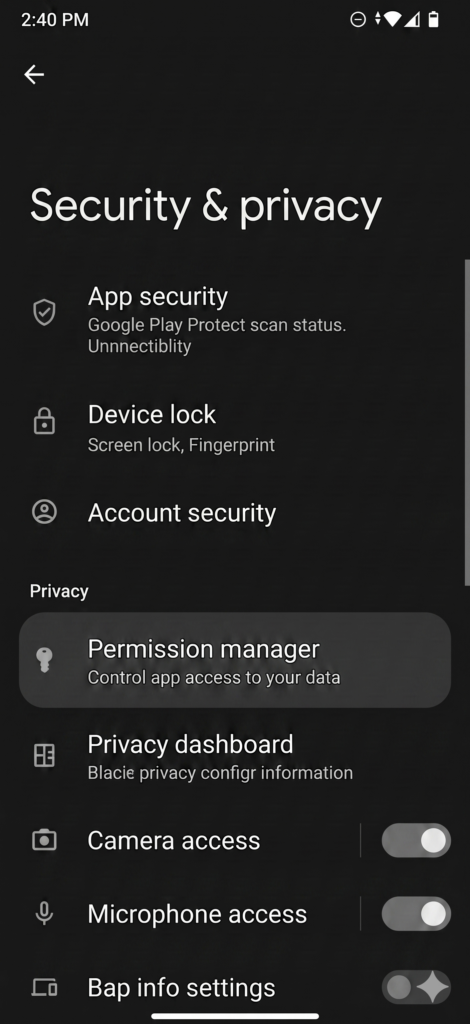
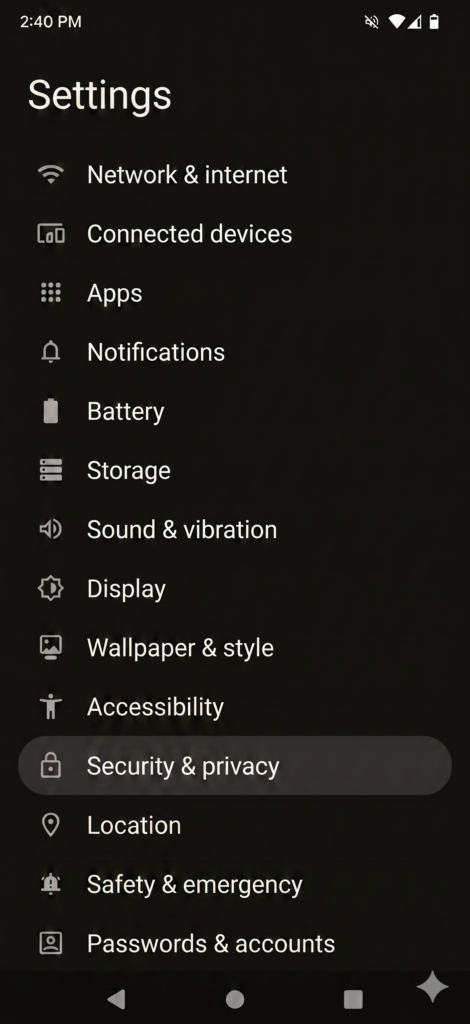
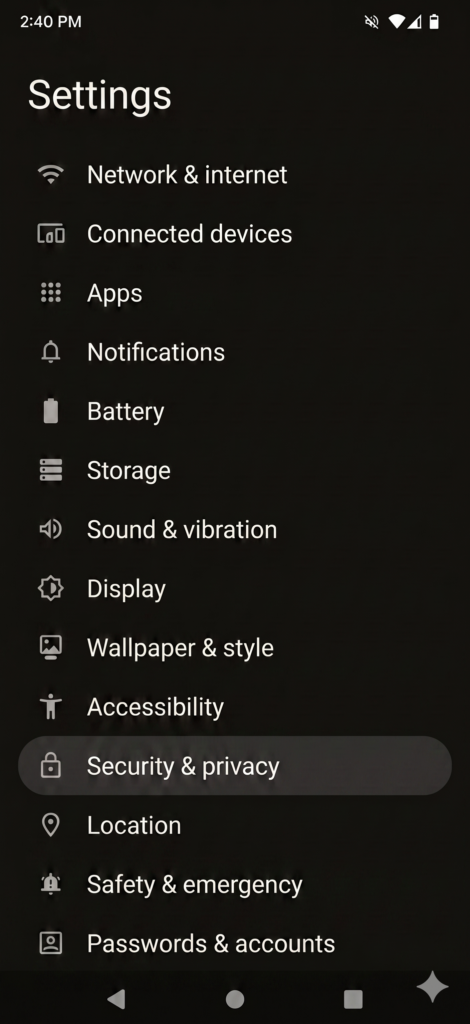
- Open your Settings app and scroll down to tap on Security & privacy (on some phones, you may just look for Location).
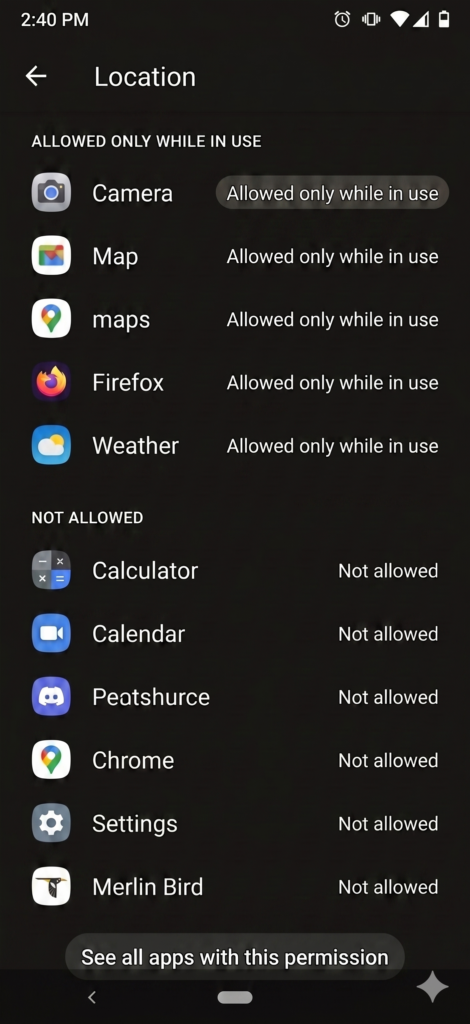
- Tap on Permission manager, and then select Location to see a list of how your apps are currently using your GPS.
- Scroll through the list of apps to find and tap on your Camera app.
- Under "Location permission," choose the option for Allow only while using the app.
- The Crucial Step: Make sure the Use precise location toggle is turned ON (the switch should be blue or highlighted). This allows the camera to record the exact, pinpointed GPS coordinates needed to verify you are actually standing at the waterfall.

About the Author
Team Destination Cape Breton
Our team at Destination Cape Breton is always exploring our beautiful Island. We love discovering our hidden gems, working with partners, and putting our Island on the pedestal it deserves!
Related posts...

Your Guide to October on Cape Breton Island
There's a céilidh happening somewhere on the Island almost every night of the year, and this October that everyday tradition builds toward something bigger: the 30th anniversary of the Celtic Colours International Festival, running October 9...

The Ultimate 7-Day Fall Cape Breton Road Trip
Plan the perfect fall road trip on Cape Breton Island. This 7-day itinerary loops the whole Island, from Sydney to Inverness to St. Peter's, with the best fall colour hikes, cozy stays and where to eat...
Cape Breton Island Travel Update
Last updated: Wednesday, September 16, 2026 at 9:00 am Cape Breton Island is open, and we can’t wait to show you why it’s worth the trip. The Island has bounced back fast after last week’s rain....
Related Resources


Unlock the Island’s Best-Kept Secrets
Get seasonal itineraries, local tips and member-only offers, straight from Cape Breton insiders to your inbox once a month.
No spam, just wanderlust fuel. Free departure anytime.